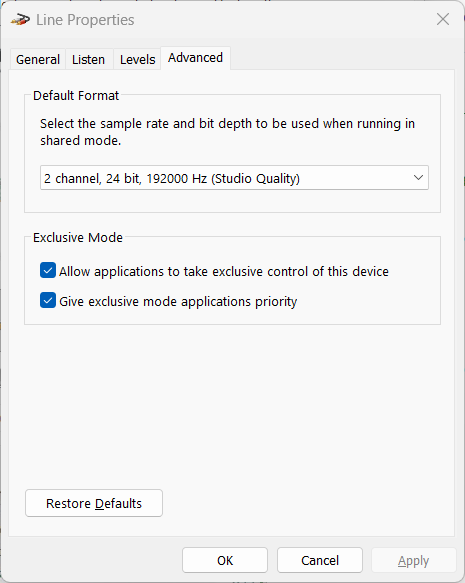
The desktop app opens the capture device itself, at the exact sample rate and bit depth you pick in Preferences ▸ Audio. Phonalyser.web cannot. A browser tab captures through the microphone/line-in permission, and the browser hands it whatever the device is already running at - its Windows shared-mode format. The app can read that rate but not set it. So to measure at your card's full bandwidth you must raise the rate in Windows first; do it once and it sticks.
24 bit, 192000 Hz (or 384000 Hz if the
hardware offers it).After the reload the FFT and frequency-response views can work up to half the new rate. The rate the app actually received is shown in the status line when capture starts.
The generator and the frequency-response sweep play through the browser's audio output, and the browser renders at the output device's Windows shared-mode rate. If the app's internal rate does not match the device rate the browser silently resamples the signal down to the device - an invisible stage that colours a supposedly clean tone. When it detects this the generator prints a warning such as:
WARNING: output device runs at 48000 Hz - the browser silently
     resamples 192000 Hz to it; set the Windows output device format to
     192000 Hz for a clean signal
The fix is identical: in Sound open the Playback devices
tab, open the device's Properties ▸ Advanced tab and set its
Default Format to the same high rate (e.g.
24 bit, 192000 Hz), then Apply. With input and output
both at the card's native rate the whole signal path stays bit-clean, with
no hidden conversion at either end.